What To Do When Your .htaccess Gets Locked Because of Malicious Code
If you suddenly see an error message saying something like 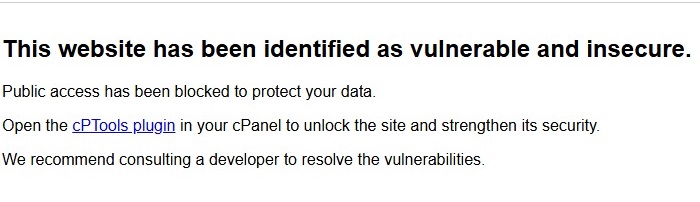 or your site is not loading, don’t panic. This usually means the hosting system detected malicious code in your website and, as a safety measure, has temporarily locked your
 .htaccess file to prevent further damage. In simple words: the server is protecting you.
Why this happens
Web hosts monitor sites for suspicious activity. When they find code that looks like malware, backdoor scripts, or anything that can compromise the server, they temporarily lock down sensitive files — and .htaccess is one of them. Locking .htaccess prevents attackers from running redirects, injections, or other harmful actions that could spread the infection or harm visitors.
Quick temporary fix (what you can do right now)
If you need your site up quickly, there is a temporary way to unlock it from your cPanel:
-
Log into your cPanel.
-
In the search box type “Abuse Admin”.
-
Open Abuse Admin and click “Complete Website Unlock”.
This will unlock the site and it should start running again. Remember — this is a temporary fix. The hosting system locked .htaccess for a reason, and unlocking it without addressing the root cause will only bring the problem back.
Why unlocking is not enough (and what happens next)
After you unlock the site, the malicious code still exists in some files. Since the root cause hasn’t been removed, the hosting security will likely detect it again and lock .htaccess a few days later. So the temporary unlock only gives you time — it does not solve the problem permanently.
The permanent solution (what you must do)
To permanently fix this issue, you should get a competent PHP developer or security expert to manually check your website files. They will:
-
Scan all files (theme, plugin, core files) for suspicious code,
-
Remove backdoors and malicious snippets,
-
Clean infected database entries if required,
-
Replace altered core files with clean copies,
-
Patch any vulnerabilities (outdated plugins, themes, weak credentials).
Only after a full manual cleanup will the hosting system stop flagging your site and the .htaccess file remain unlocked for good.
Preventive tips to avoid future infections
A few small steps now can reduce the chance of infection later:
-
Keep your CMS, themes, and plugins updated.
-
Use strong, unique passwords for admin, FTP, and database.
-
Remove unused plugins/themes and delete old backups from the web root.
-
Use a reputable malware scanner or security plugin.
-
Keep regular backups stored off-server so you can restore quickly if needed.
-
Limit file permissions to recommended settings and disable file editing from the CMS dashboard.